

What’s New in Main Court — November 2026


Main Court gives you more control over your schedule, faster ways to organize matches, and clearer options for inviting and replacing players.
More control over your schedule
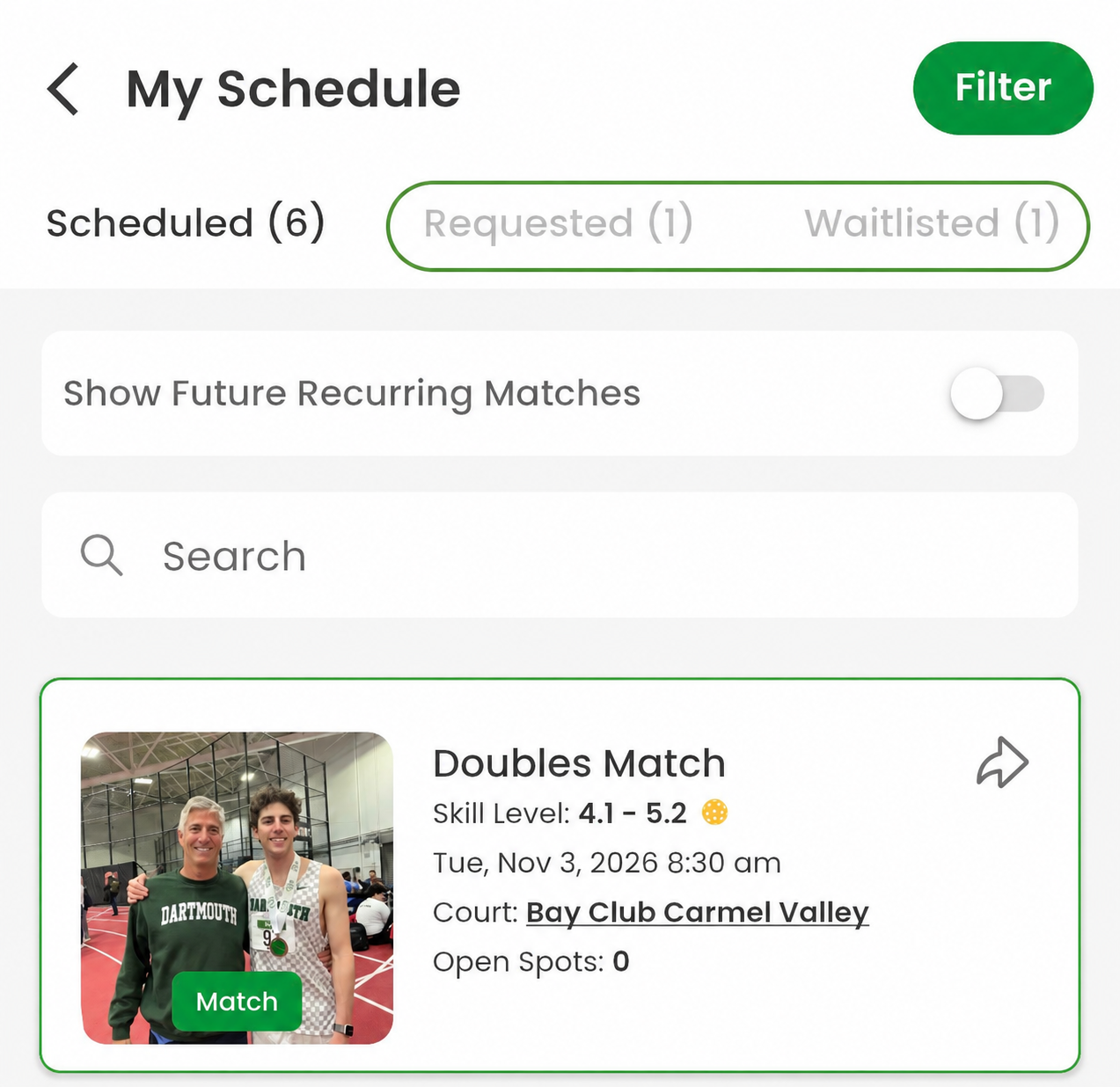
Your Main Court schedule is now easier to manage. Open My Schedule to see three dedicated views:
- Schedule shows your upcoming matches and events.
- Requested keeps pending requests to play in one place.
- Waitlist shows the matches and events where you are waiting for a spot.
You can also search your schedule and choose whether to show future recurring matches.
Change your plans without losing track
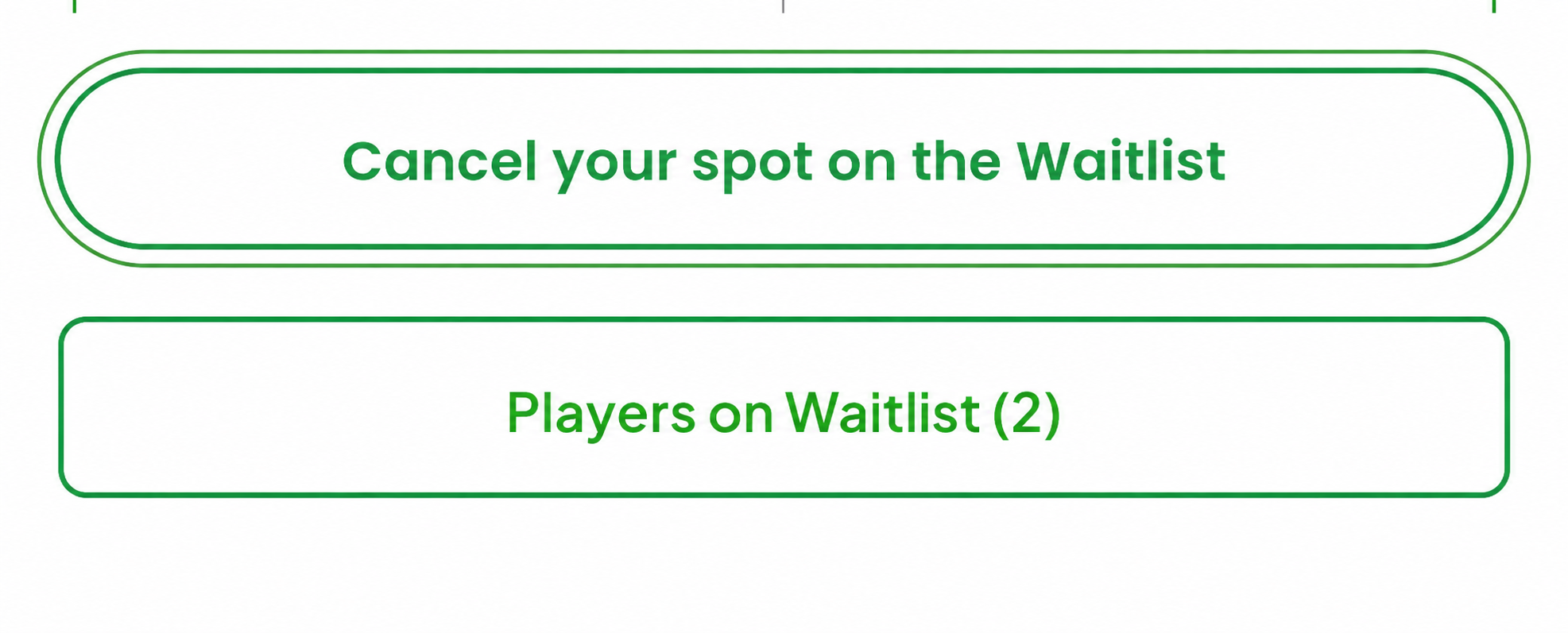
If your plans change, open an item from Requested and cancel your pending request from the match details screen. If you are on a waitlist, open the item from Waitlist and choose the option to cancel your waitlist spot.
Copy a Match
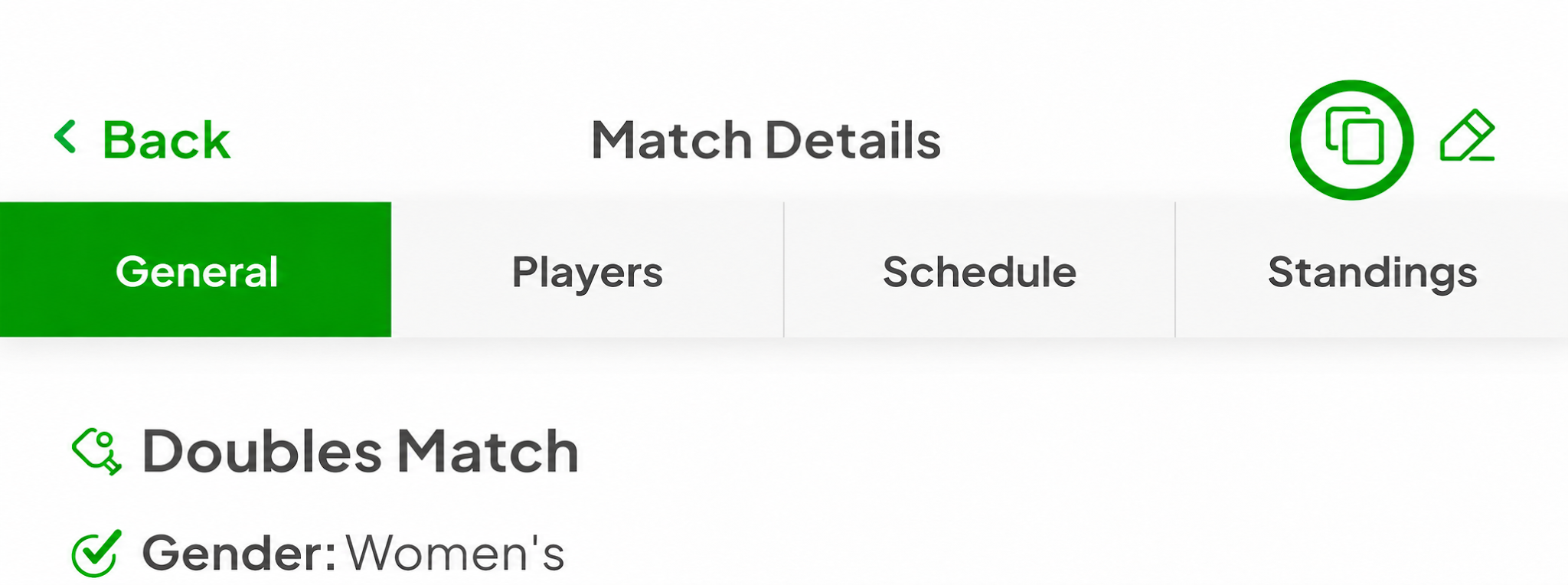
Organizers can open a scheduled match and tap the copy icon — two overlapping squares — beside the pencil. Main Court opens a separate Create Match flow with much of the original setup already filled in, including the title, match type, player count, privacy, ratings, duration, notes, court details and pricing where present.
Choose a new location, date and time, review every detail, then create the new match and select or invite players. The original match is not changed.
How to copy a match
- Open a scheduled match you organize.
- Tap the copy icon beside the pencil.
- Choose a new location, date and time, review the prefilled setup, then create the new match and select or invite players.
Editable match titles
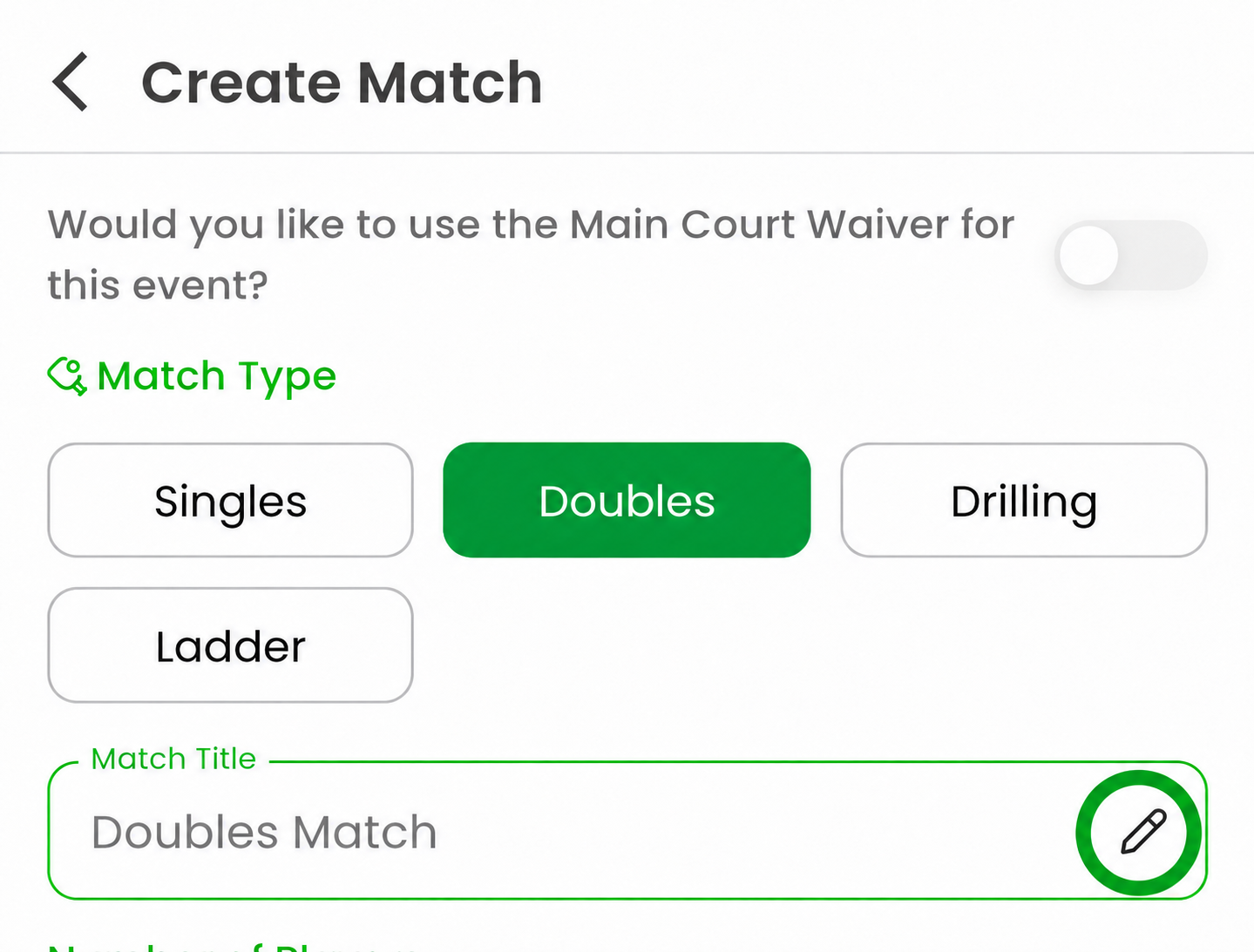
You can enter a custom title when creating or editing a match.
- On the Create or Edit Match screen, find Match Title.
- Tap the pencil beside the title to unlock the field.
- Enter the name you want, then continue creating or updating the match.
A timely waitlist reminder
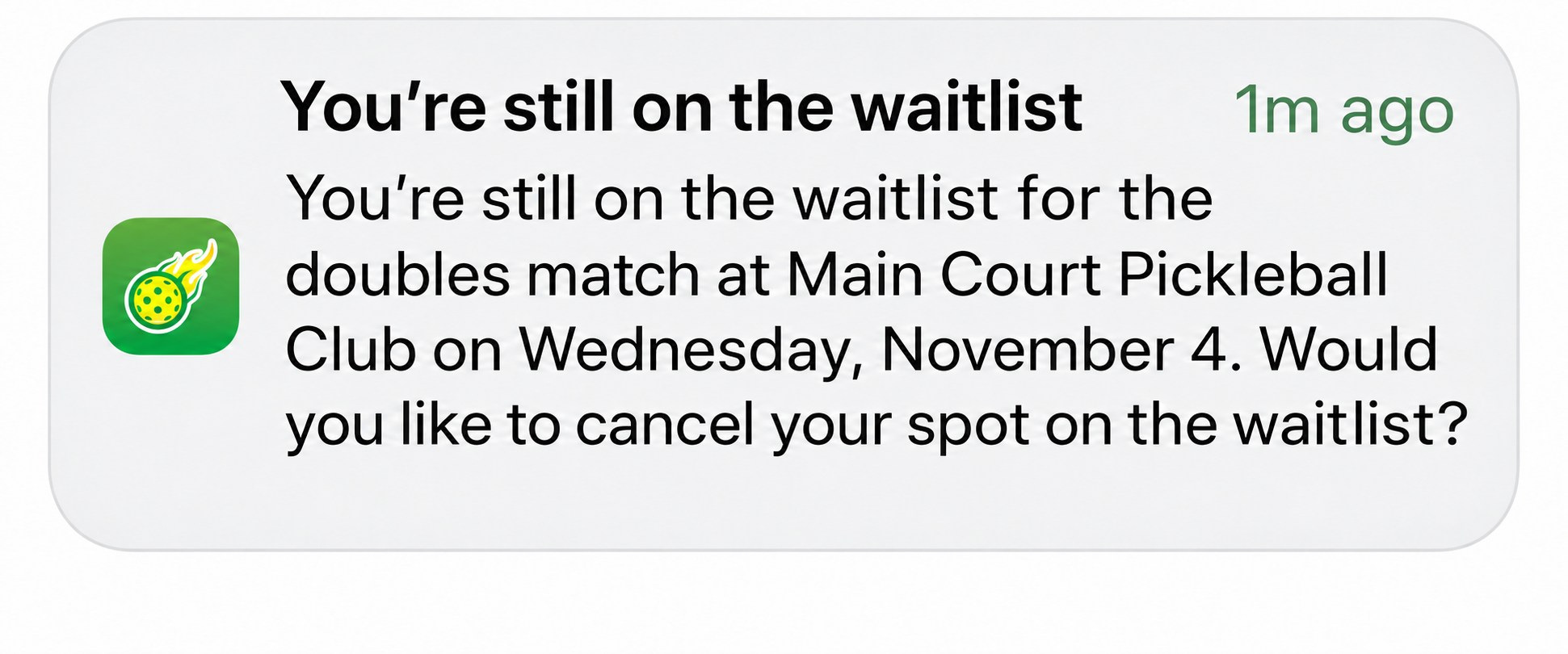
Players who are still on a waitlist can receive a reminder shortly before the event. The reminder asks whether they still want to remain on the waitlist, helping players review their plans before the start.
Easier player search and invitations
Finding a player to invite to your match is now easier. Previously, you often had to clear filters when the player you were searching for was outside the match’s skill range. We’ve updated invitation search to make finding and inviting players smoother.
Organizer substitutions: add now or invite
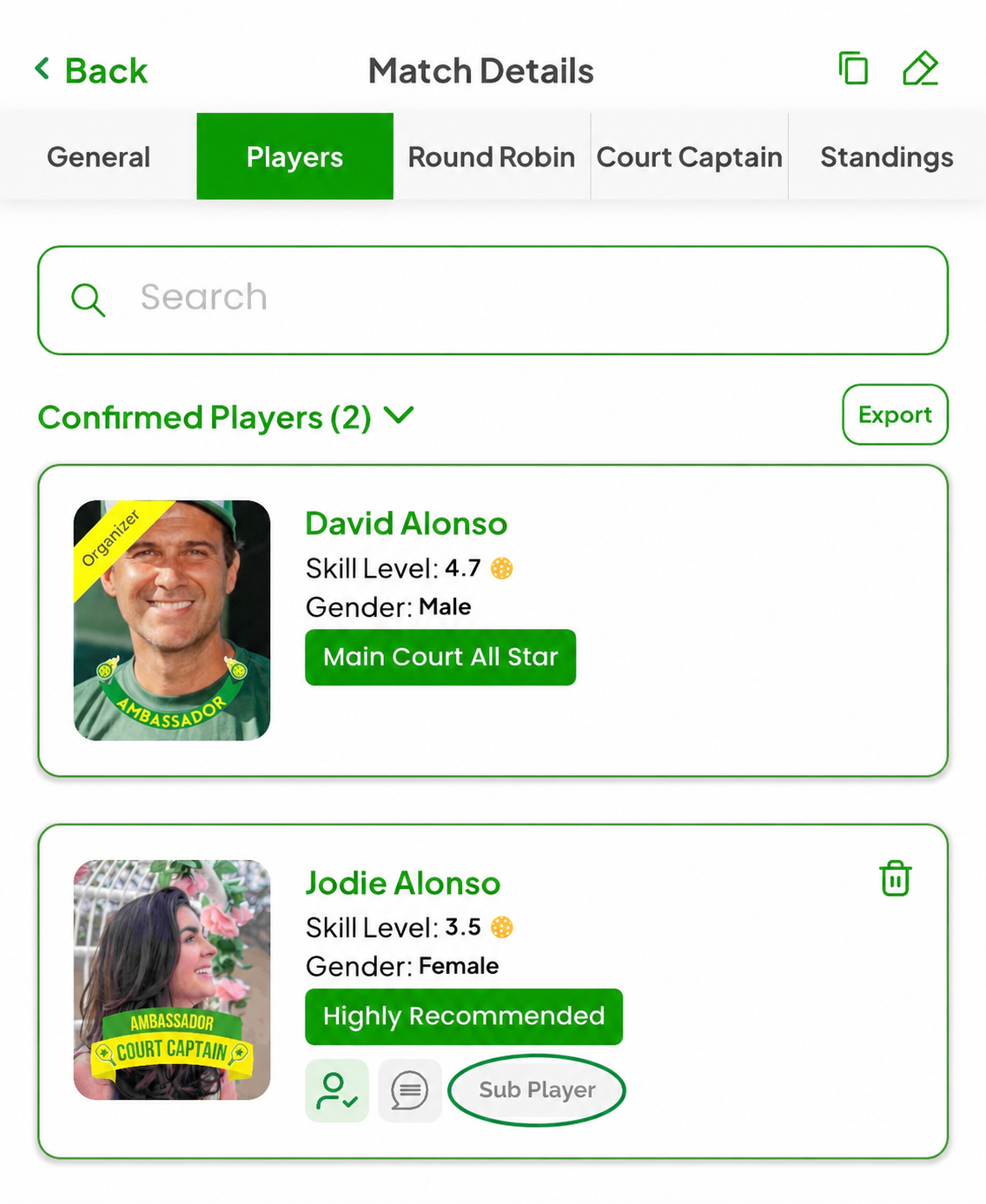
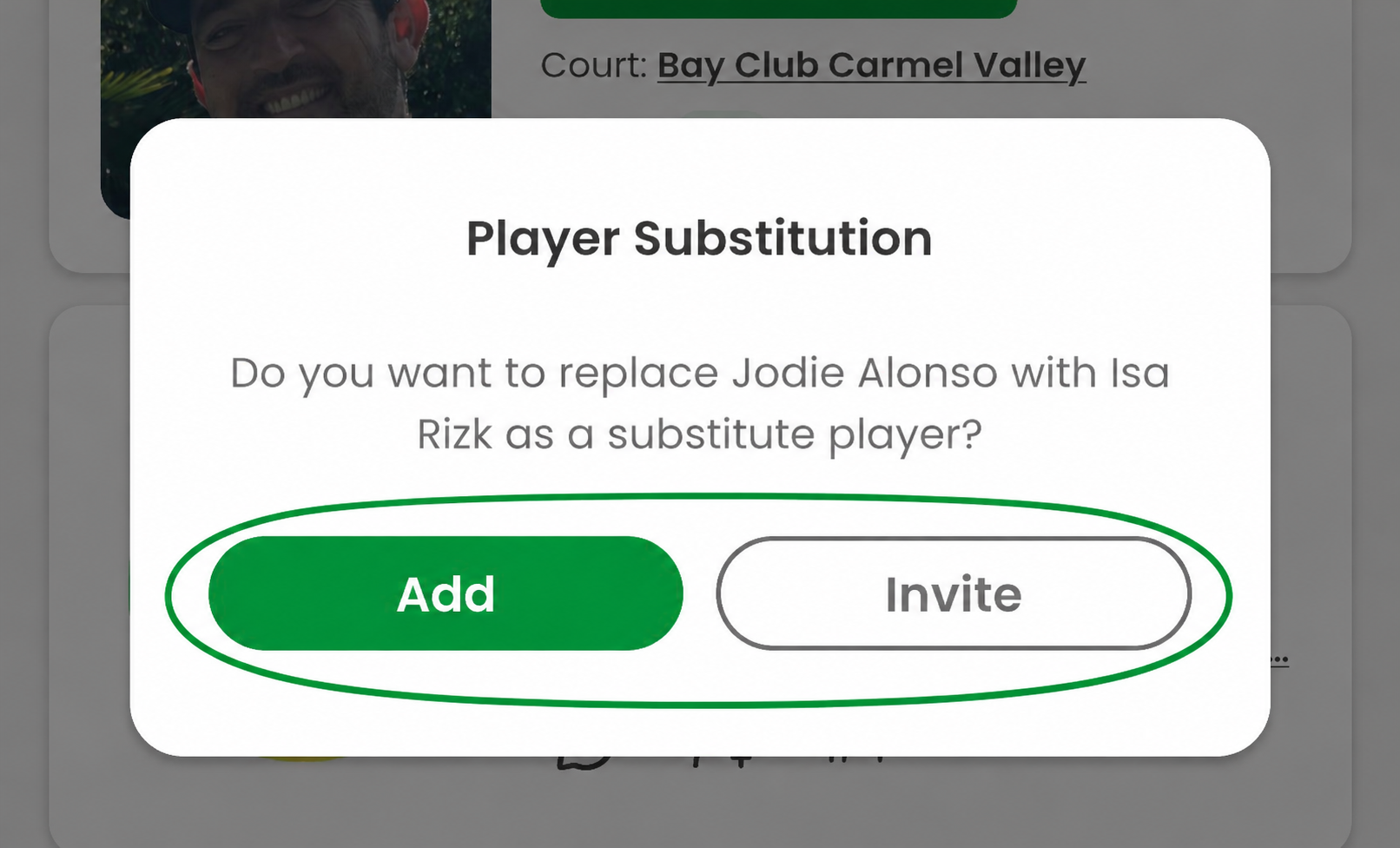
In a match, an organizer or co-organizer can select a confirmed player, find a substitute, and choose one of two routes:
- Add — replace the confirmed player immediately with the selected substitute.
- Invite — send a substitution request. The substitute accepts or declines; the original player may also need to approve depending on who starts the request.
Add a link to any social post
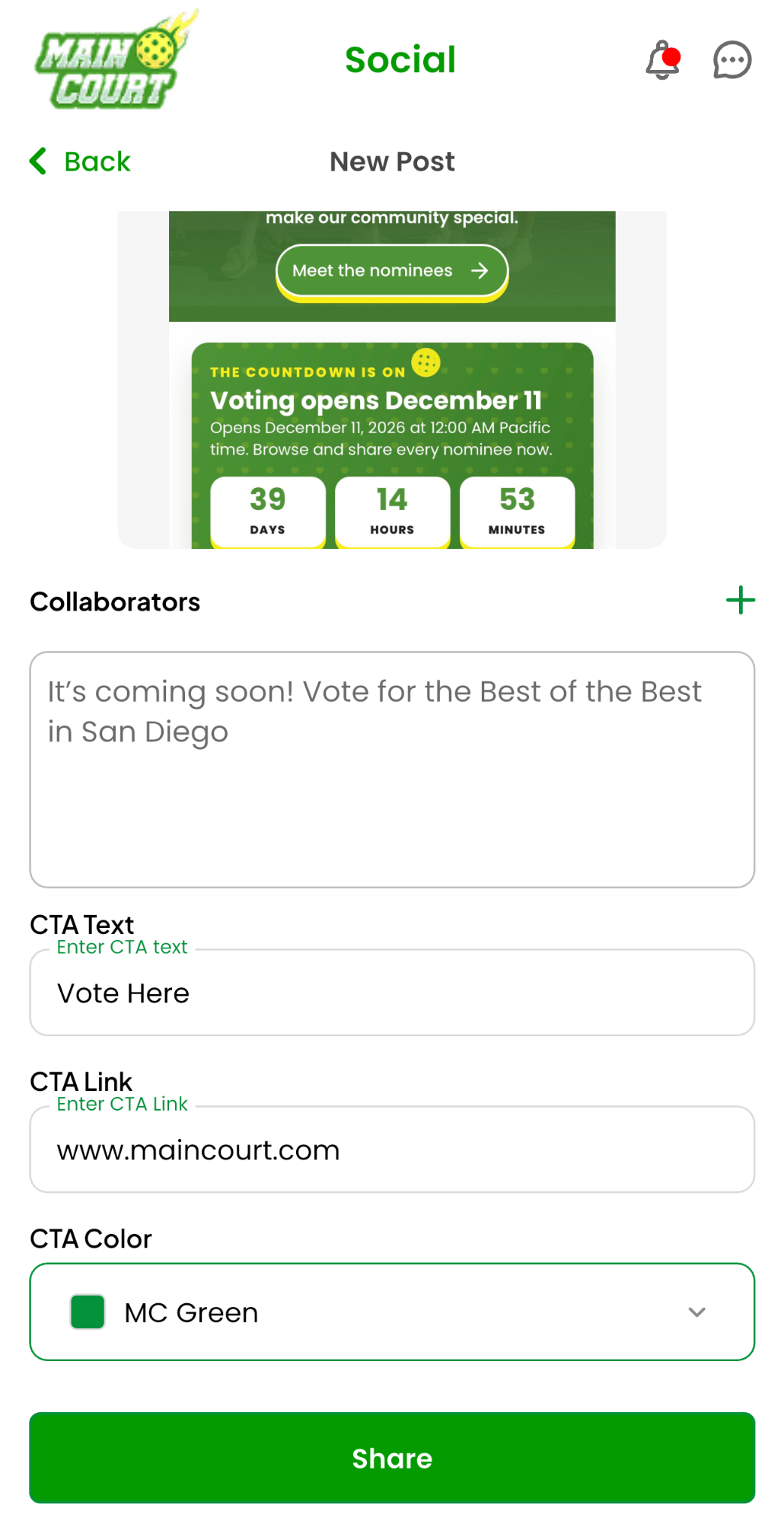
You can now add CTA text and a link to a social post without attaching the post to a group or event. This makes it easy to send people directly to any page you choose.
- Create a new social post and add your image or poster.
- Enter the button wording in CTA Text, then paste the destination into CTA Link.
- Choose the CTA color, review the post and tap Share.
Ready for your next match
Update Main Court to explore the latest ways to organize matches, manage your schedule, invite players and stay connected.
Cheers
Main Court Team
